How to find your team's data using default segments
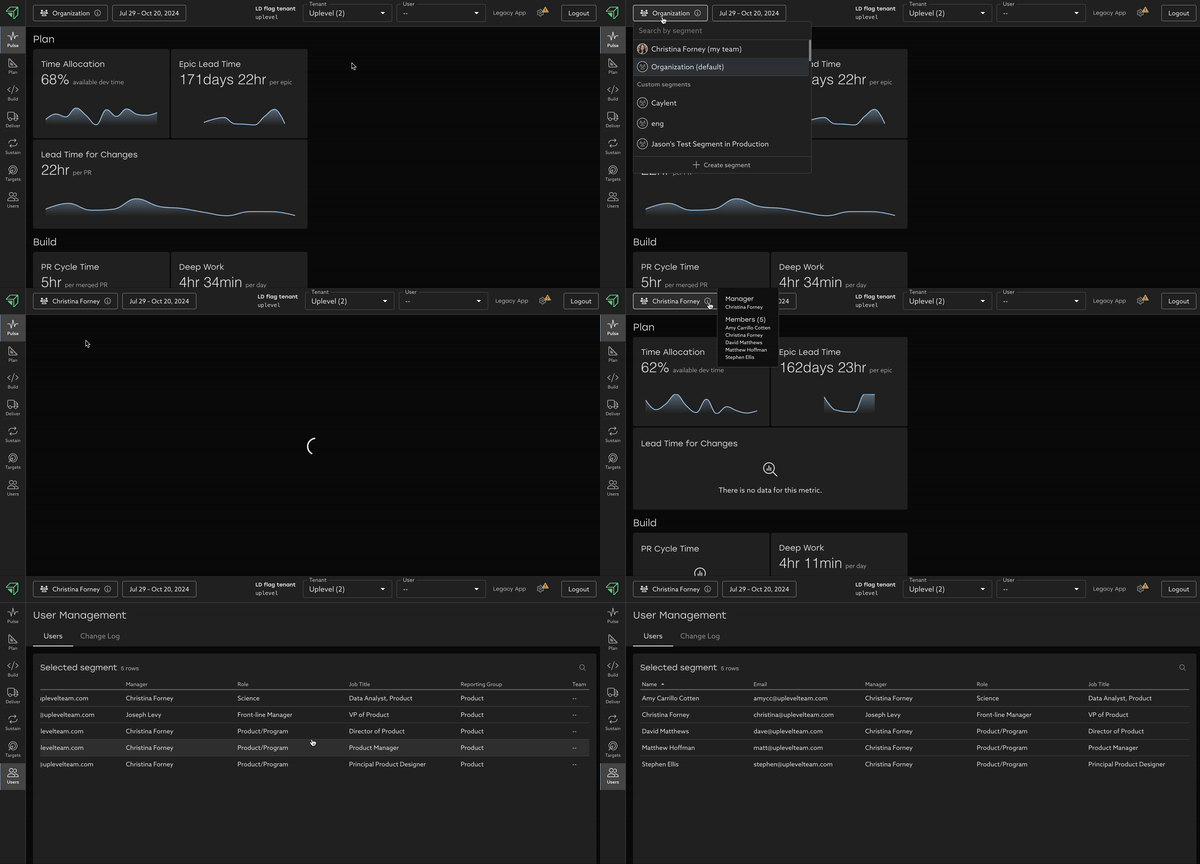
By default, Uplevel displays a broad overview of your organization. You may want to narrow down to see a subset of that organization. To choose which set of users are included in that selection, click the Segment dropdown at the top left of the screen.
A segment is a set of users that meet a certain set of criteria. A few examples are:
- Individuals who report directly to a manager.
- Individuals who report up to a manager (this goes up the organizational hierarchy to a certain level).
- Individuals who have a common set of properties that are defined in the organizational chart that comes to Uplevel. For example, the region they work in, or the Scrum team they work on.
There are two promoted segments for easy access - your specific team, as well as your organization's default.
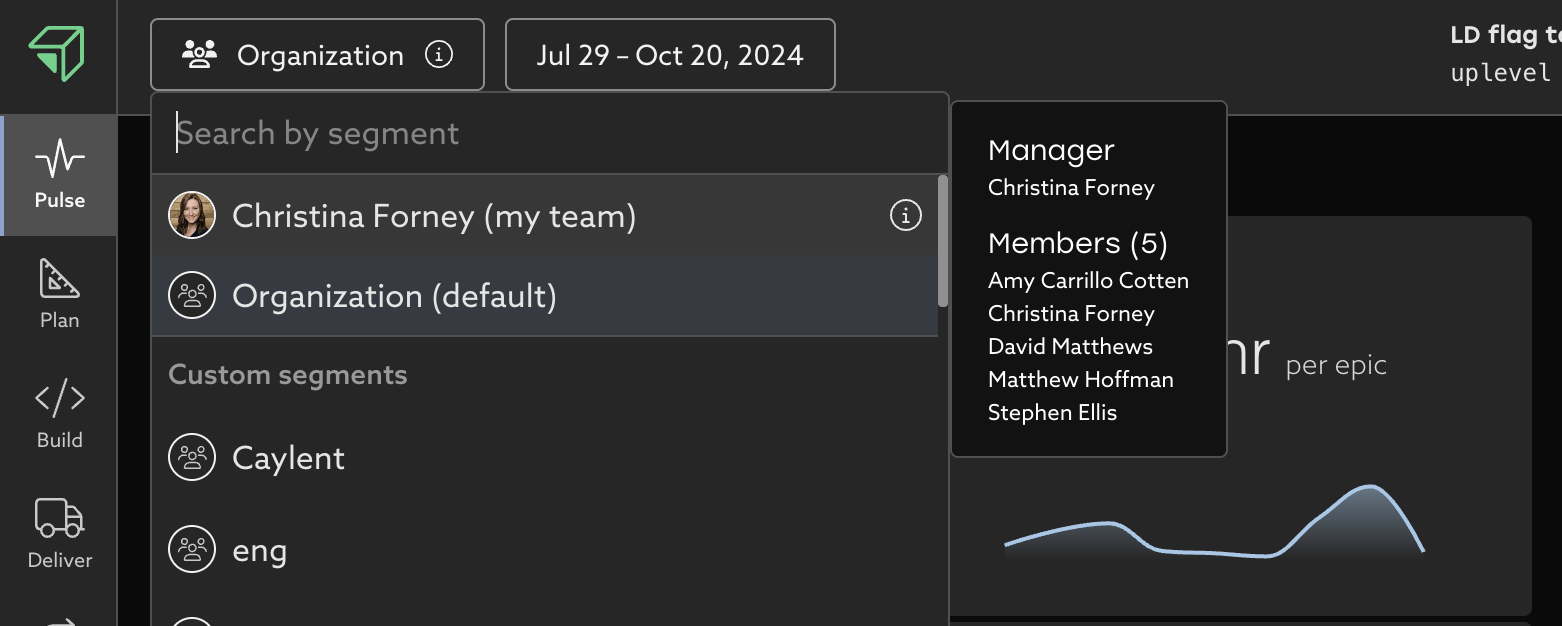
To scope Uplevel to a specific segment, start typing in the Search by segment box to find matches, and then select the desired segment. You can also scroll to find your segment of interest.
Joe Levy has multiple layers of teams reporting up to him. He not only manages a team of individual contributors, but also managers, and managers of- managers.
To scope to only Joe's direct reports, select Manager: Joe Levy.
To scope to everybody in the organizational hierarchy, select Reports up to: Joe Levy.

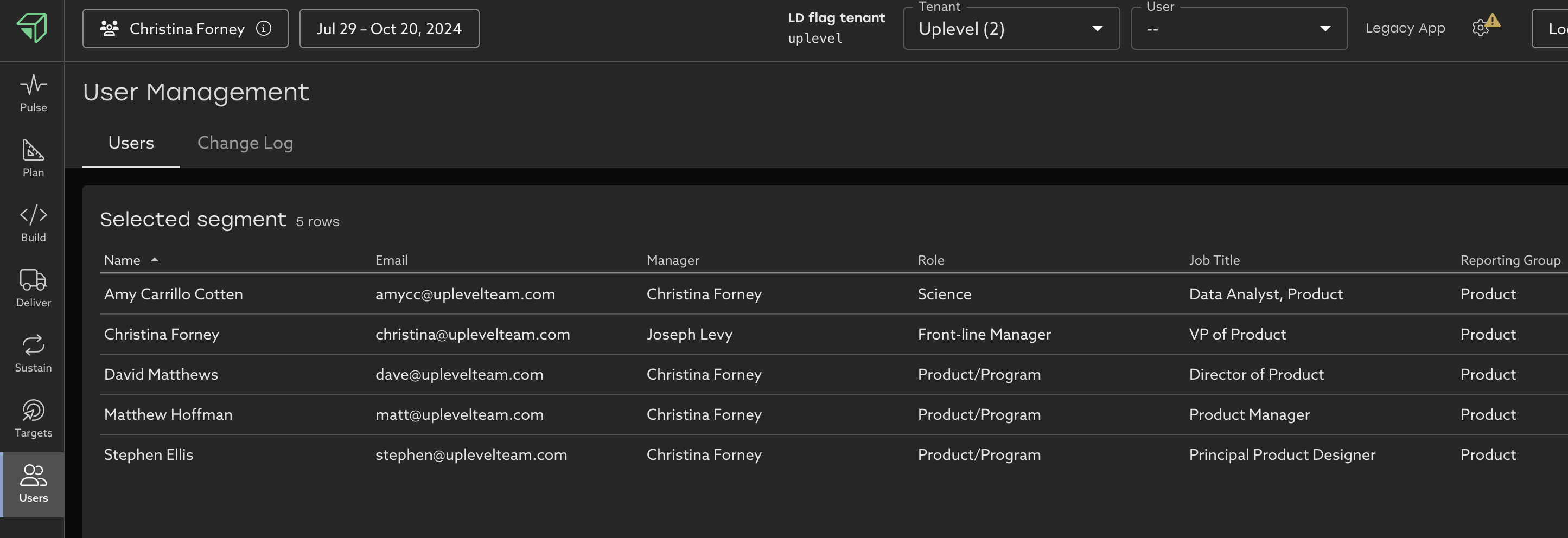
For details on all individuals included in a segment, click the Users Icon on the left navigation menu. Here you can see properties about the about the individuals included, for example Job Title, who their manager is, etc. These properties come to Uplevel through the organizational chart.
Related Articles
Understand your team's Lead Time for Changes
Learn how to navigate your organization's Lead Time for Changes data and how you can take action to mitigate risk Trend Learn about your organization by analyzing your Lead Time for Changes trend over time. With this view, you can easily see where ...How to decrease your team's unallocated time
Tips and best practices to get a more complete picture of your organization's investments in Time Allocation Uplevel's Time Allocation metric combines signals from calendar, chat, project tracking (Jira) and version control systems (git) to estimate ...How to use Uplevel to find velocity opportunities
The first step towards increasing velocity is finding where your biggest opportunities lie. There are a variety of venues through which opportunities in velocity can be found. Note that affecting/changing velocity comes later, and can be explored in ...How to explore your data with "Group by" options
Insights data can be pivoted by key properties in order to view differences between groups. Imagine that Uplevel insights show a high-level trend across all the people in your selected segment. Clicking into the details provides a Table view with ...How to find low Deep Work time
Learn how to analyze and improve your organization's deep work. Uplevel categorizes your team's work into two buckets: Development time, which consists of Deep Work and fragments. Optimized development time consists of as little fragments as ...