How to create a custom segment
Save a group of people as a segment to focus on their data
By default, Uplevel shows data about everyone in your organization, but offers a list of default segments you can pick from to see more detailed groups.
Let's create a custom segment with exactly the people you want to see included: engineers who live in Washington.
- Click the segment drop down to see all the available segments.

- At the bottom of the menu, click "Create segment".
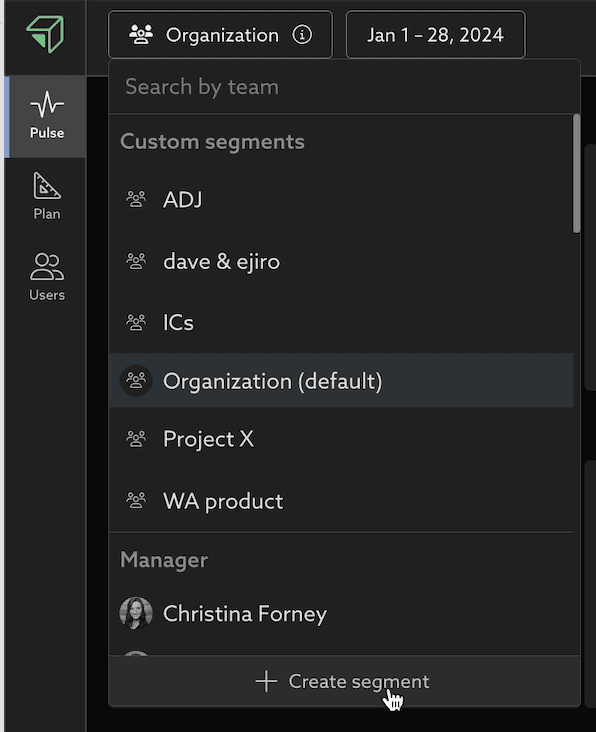
- Give your segment a name.
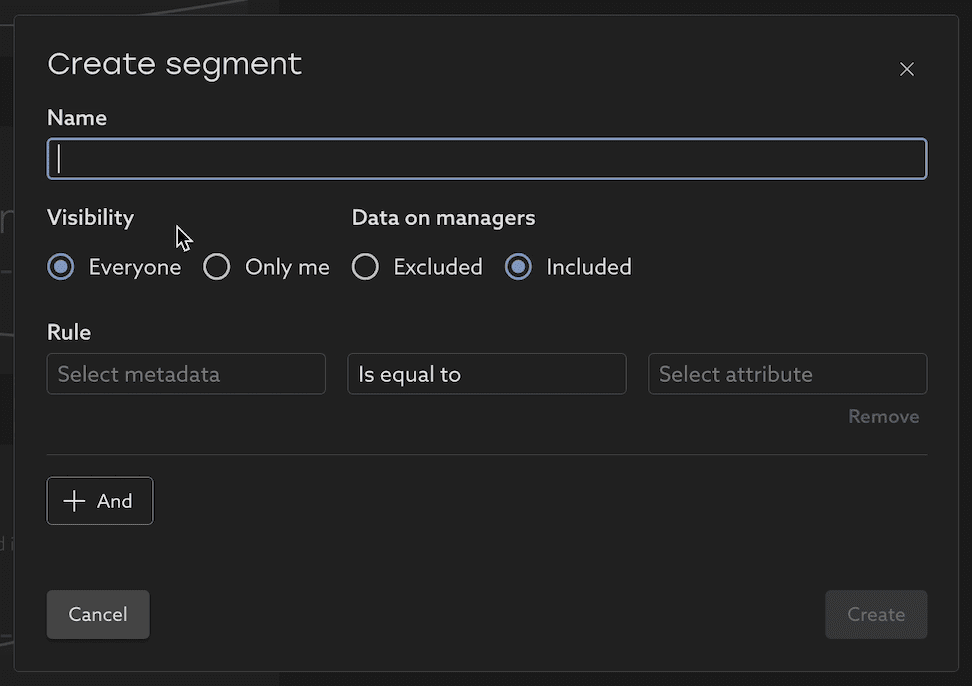
- At this point you can decide whether this segment should be available to everyone or only to you, whether managers should be included in your segment, and if the segment should include former employees as well as current ones.
- Create a rule for which people should be in the segment. This can be based on any of the properties about individuals, such as their role, location, or department. Take a look at the Users tab to see these properties on everyone at the org.
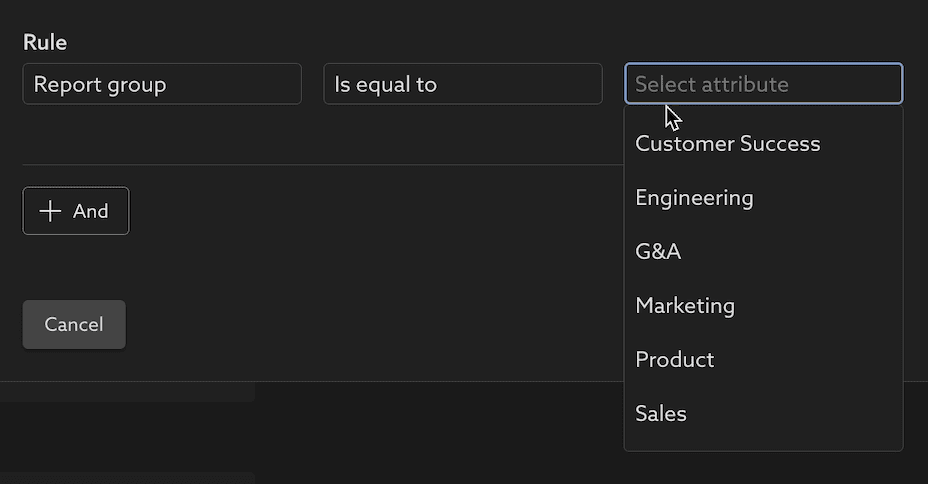
- Click +Add to add additional rules if needed, for example, Home State = WA.
- Tip: To make a very specific list of users, select Rule: User, and select the individual people you wish to include one-by-one.
- Finally, Eligible Users shows the number of people in the segment you're creating, and expand to review the list.
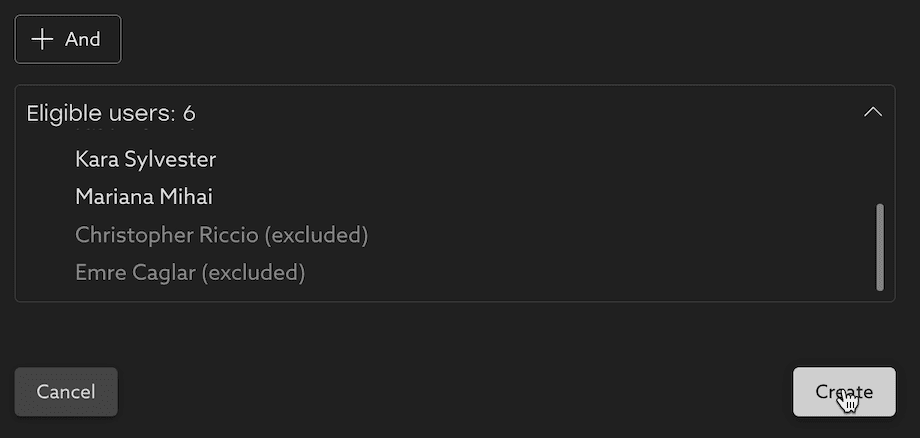
- Click Create to save the new segment.
Related Articles
How to set a metric target
Set targets for metrics and teams to help drive change in your org. Targets can now be set on any key insights directly within the dashboard. This feature is designed to empower every team to actively participate in setting goals and tracking ...How to find your team's data using default segments
Scope Uplevel to your team By default, Uplevel displays a broad overview of your organization. You may want to narrow down to see a subset of that organization. To choose which set of users are included in that selection, click the Segment dropdown ...Allocation Schemes
Definitions of Allocation Schemes, and examples of how they can be used to calculate Time Allocation for your organization. Allocation Schemes (also thought of as Allocation Rules) are used to group similar work items into larger categories to get ...Including and excluding former employees
When looking at historic trends, it is sometime helpful to focus on current or former employees in the analysis. The makeup of an organization changes over time as employees join and leave. When looking at historic trends, it is sometimes helpful to ...How to decrease your team's unallocated time
Tips and best practices to get a more complete picture of your organization's investments in Time Allocation Uplevel's Time Allocation metric combines signals from calendar, chat, project tracking (Jira) and version control systems (git) to estimate ...