How to set a metric target
Set targets for metrics and teams to help drive change in your org.
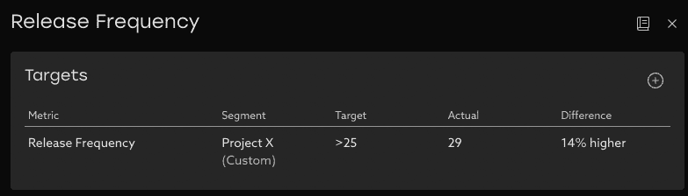
Targets can now be set on any key insights directly within the dashboard. This feature is designed to empower every team to actively participate in setting goals and tracking progress.
Key Features
Setting Targets:
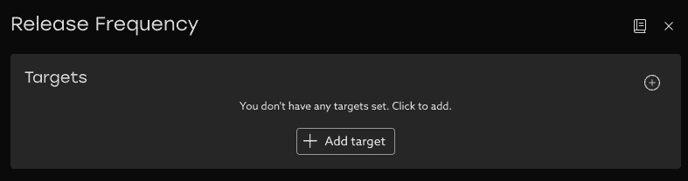
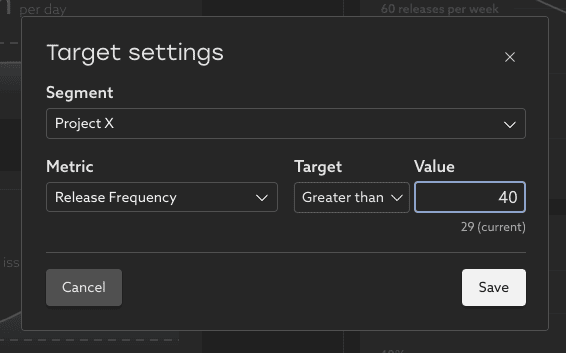
Every user can now set and track targets on any metric tracked in the dashboard. Targets can be created for the entire organization, specific teams, or custom segments, including private segments visible only to you. When creating a target, choose the applicable Segment, the Metric to track, whether you aim to be above or below the target value, and the desired target value.
Centralized Targets Page
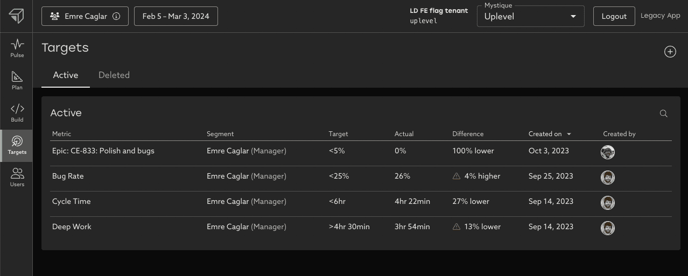
All targets from across the organization are visible on the Targets page for easy access and management. From the Targets page, you can view, edit, or delete existing targets. The individual who created each target is clearly identified for transparency and context.
Drive Change and Clarity
Setting targets helps align efforts, drive change, and create clarity on areas where teams aim to improve. By defining measurable goals, you can track progress, identify areas for improvement, and celebrate achievements. Targets foster a data-driven approach to decision-making and enable more focused and impactful initiatives.
Frequently Asked Questions (FAQ)
- Why do I see multiple targets on the same insight?
- By default, all targets at the organization are visible, which gives a clear picture of efforts going on across all teams. Once you drill into a specific segment using the segment filter, only targets specific to that group are shown.
- What time frame is used in evaluating targets?
- Targets are evaluated against whichever time frame is selected in the filter bar. For ex, if you select the most recent 2 weeks, only data from that period will be taken into account when comparing against the target value.
- This gives visibility into whether a target is being met right now in the short term, or in general over a longer time frame.
- Who can create targets?
- Any user with access to the Uplevel Dashboard can now create targets on metrics and segments they have visibility into.
- Can I set targets for private segments?
- Yes, you can set targets for private segments that are visible only to you. This allows for personalized goal-setting aligned with your specific objectives.
- How can I track progress against targets?
- Progress against targets can be monitored from the Pulse overview, Snapshots, Drill-in pages, and the overall Targets page. Alert icons indicate where a metric has been set that is not yet being met.
- How can targets be edited or deleted?
- To edit a target, navigate to the Targets page and click on any target you wish to modify.
- What if I accidentally delete a target?
- Deleted targets can be seen on the Targets page on the “Deleted” tab.
- Deleted targets can be seen on the Targets page on the “Deleted” tab.
For any questions or feedback, please reach out to support@uplevelteam.com
Related Articles
How to Understand Your Organization's Top-Level Investments
Keeping Jira data tagged consistently is difficult at all levels of an organization. Some teams are on company-managed boards with required custom fields, while other teams use team-managed boards where those same rules don't apply. Some teams are on ...Epic Lead Time
Understand the bottlenecks in your planning process by looking at your Epic Lead Time phases Overview Epic Lead Time is defined as the median epic duration, which is calculated as the difference in time from when the epic is created, through to when ...How to use Uplevel to find velocity opportunities
The first step towards increasing velocity is finding where your biggest opportunities lie. There are a variety of venues through which opportunities in velocity can be found. Note that affecting/changing velocity comes later, and can be explored in ...Change Failure Rate (CFR)
What is Change Failure Rate? Change Failure Rate is one of the four key DORA metrics that measures how frequently changes to production result in degraded service that requires remediation. To calculate this, Uplevel analyzes the sequence of ...Issue Velocity
Learn about your organization's work completion practices and how they've changed over time. What is Issue Velocity? Issue velocity is a measure of the volume of work a group has collectively completed within a given time period, normalized by the ...