Change Failure Rate (CFR)

Change Failure Rate (CFR)

What is Change Failure Rate?

Change Failure Rate is one of the four key DORA metrics that measures how frequently changes to production result in degraded service that requires remediation. To calculate this, Uplevel analyzes the sequence of deployments to production in a given repository.


Consider the scenario where a code change was deployed to production, but it contained a defect that was missed during review. This degraded service, so the next day, a hotfix PR was written was written and deployed to production to restore service. In this scenario, the first deployment (containing the defect) would be considered a "failure". 

How is CFR Calculated?

First, Uplevel classifies each deployment to production within a repository into three categories:

Failures

These are deployments to production environments that are followed a subsequent deployment that includes work that signifies there was defect remediation. Uplevel estimates this by analyzing the PR branch name and title, as well as linked Jira ticket titles and issue types, looking for the following keywords: bug|incident|security risk|defect|vulnerability|hotfix|coldfix|patch|fix forward|rollback

Uplevel also looks for rollback deployments that could indicate that there was a problem with a previous deployment.

Additionally, Uplevel takes timestamps of work into account to avoid bug/polish work that was started before a code change was live in a production environment.

Successes

These are deployments to production that are not followed by repair work. These represent the majority of deployments that are observed by Uplevel.

Fix-only

These are deployments that are observed to only contain repair work. E.g., every PR contained meets the criteria described above OR a deployment is a rollback. Since these deployments aren't planned changes to production, they are removed from the calculation of CFR described below.
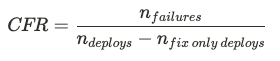

In a given time period, Uplevel considers all deployments that are attributed to a group of people either because someone initiated the deployment or authored a PR that was included in the deployment. CFR is then calculated using counts (n) of the various deployments:
Fix-only deploys are removed from the denominator of this equation for two reasons:
Consider the following sequence of deployments:
  1. A successful, routine deployment.
  2. A deployment that is estimated to include a defect (i.e., a failure) 
  3. A rollback, which only would have occurred to remediate the defect of the previous deployment.
In the above scenario, there are two intended changes to production and thus a 50% CFR, which aligns with the DORA question: "what percentage of changes to production or releases to users result in degraded service".

Additionally, if fix-only deployments are included in the total number of deploys, it may be tempting to game this metric by issuing multiple several fix-only deployments to increase the denominator, and artificially lower the CFR for a team. For example, if there was a problematic deployment, a team might issue three different "fix-only" deployments to fix it to reduce the team's CFR from 100% down to 25%. 

The purpose of this metric is not to penalize teams, but rather highlight areas for improvement and facilitate data-driven conversations. 

How are Deployments to Production Defined?

Deployments to production are estimated for each repository by the environments configured within Github Actions. Uplevel uses an organization wide regular expression (Regex) to find for production environments, but exclude non-production environments, but can also configure specific repositories. Your organization's global definition is visible by visiting the configuration page, and clicking on an environment. Learn more about how to utilize this page here.

Deployment Frequency Charts

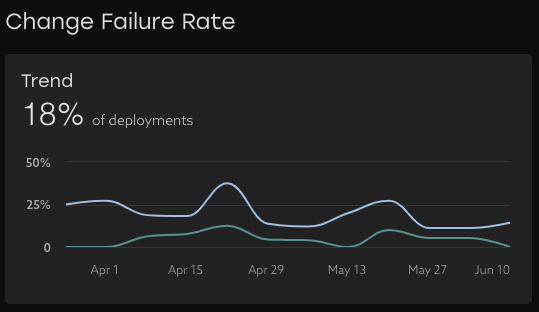
Trend

See how the Change Failure Rate has trended over time with the overall CFR shown in blue, as well as an "Urgent" CFR shown in green. Deployments including a remediation within 48 hours of the previous deployment are considered urgent.

Idea
Increases in either the overall CFR or Urgent CFR can surface reduction in quality over time, so track this metric closely, and consider putting a target for your team to track against.

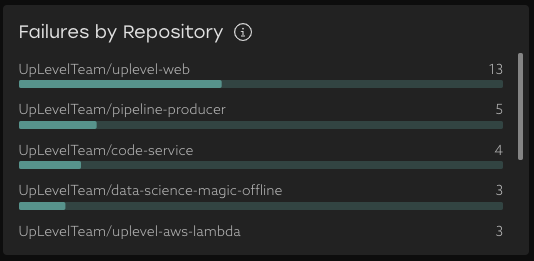
Failures by Repository

Observe where the failures are occurring to look for hotspots in your codebase. This bar chart indicates how many failures have occurred in a given repository, with the length of the horizontal line representing the proportion of failures across all repositories. Use this chart to determine how to mitigate risk from particularly troublesome parts of the codebase.

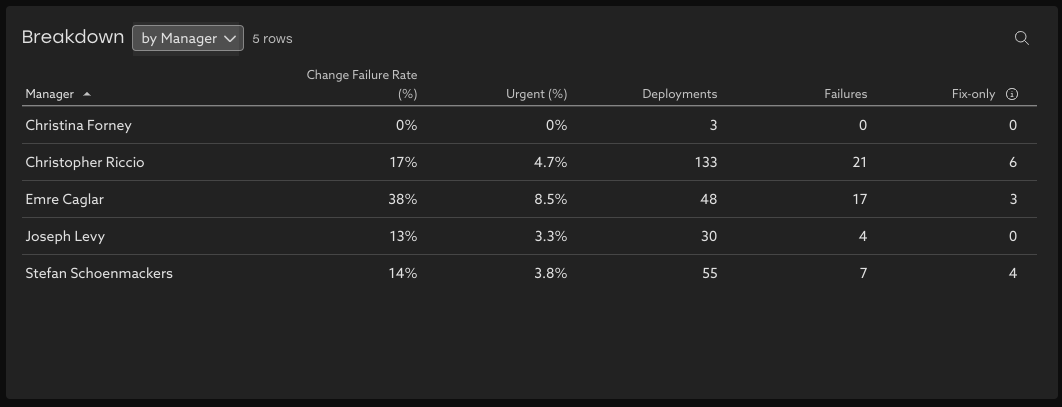
Breakdown Table

Explore the data to learn how frequently teams deployments require remediation by looking at the CFR(%), how often there was urgent remediation required, as well as the total number of Deployments, Failures (non-urgent), and Fix-Only deployments. This table can be pivoted both by people properties like team and report group.


Note that Uplevel attributes deployments to both the person that initiated the deployment workflow, as well as authors of PRs that were included in a deployment. This means that a single deployment (successful or otherwise) can count for multiple groups of people in the breakdown table. Additionally, a person can be a member of multiple segments. These will cause the sum of successful production deployments in this breakdown to be slightly greater than the totals shown above.

Example: a ‘Manager’ segment where the manager is in their own team’s segment (e.g., Chris Riccio's Team), in addition to being part of their manager’s team (Joseph Levy's Team). 

Idea
Tip: If there are repositories or groups of people with elevated CFR rates, then it could merit a conversation about what's leading to these statistics. It might be time to sharpen the axe or reduce some tech-debt to make deploying code easier, which should improve both users and developers experiences. 


    • Related Articles

    • Bug Rate

      Learn about your organization's bug practices and how they've changed over time. Trend This metric shows the percentage of issues closed during the time period that were bugs. An issue is considered a bug if it has an issue type that contains the ...
    • How to explore your data with "Group by" options

      Insights data can be pivoted by key properties in order to view differences between groups. Imagine that Uplevel insights show a high-level trend across all the people in your selected segment. Clicking into the details provides a Table view with ...
    • Advanced Filtering and Grouping

      Find stories in the data with new filtering and grouping tools. Filtering and grouping options in Uplevel insights allow more powerful options for exploring the data and finding outliers. Grouping Select groups that make sense for summarizing the ...
    • User Administration

      Admins can make updates to their org chart directly in the Uplevel dashboard. One of the primary ways information is organized in the Uplevel Dashboard is based on the teams of people that work together. On a recurring basis, Uplevel imports an ...
    • Pulse Page

      Understanding important changes over time at a glance Metric Trends on the Pulse Page highlight the insights with the largest recent change, to highlight where focus is needed, and where efforts to improve are showing the biggest impact. It's ...