Time Allocation

Time Allocation

How does Uplevel calculate Time Allocation for my teams?

What is Time Allocation?

Time Allocation is a specific Uplevel insight that provides an automated, up-to-date breakdown of where your organization’s time and efforts are spent. As a pivotal lens for engineering organizations today, Uplevel’s Time Allocation empowers engineering leadership with the right visibility to proactively align efforts to strategic business priorities and systematically inform tax capitalization reporting, all while saving your teams from manual, heavy lifting on a regular basis to try to compile this on their own.

Time Allocation Calculation

Uplevel’s Time Allocation has been rigorously evaluated and audited for the purposes of tax capitalization reporting, and has passed each test due to the way in which Uplevel overlays metadata from each data source.

  1. Uplevel references each developer’s calendar to discern time spent in Meetings and Out-of-Office vs. available time on the calendar. Uplevel then intelligently captures the amount of Chat Interruptions each developer has for each day. The remaining time outside of Meetings, Out-of-Office, and Interruptions, is classified as Available Dev Time.


  2. With the Available Dev Time, Uplevel then aggregates all the activity from Jira, Git, and Incident Management to identify engineering time and efforts spent on various Epics, Projects, Issue Types and more. Beyond simply looking at PR activity at the repo level, Uplevel intelligently links PRs to the respective Jira work to provide an enhanced view of where time is spent. 


  3. Uplevel looks a distribution of activity (the space between timestamps) as a portion of the entire working day. Then we apply that same percentage of available working time as the allocation.
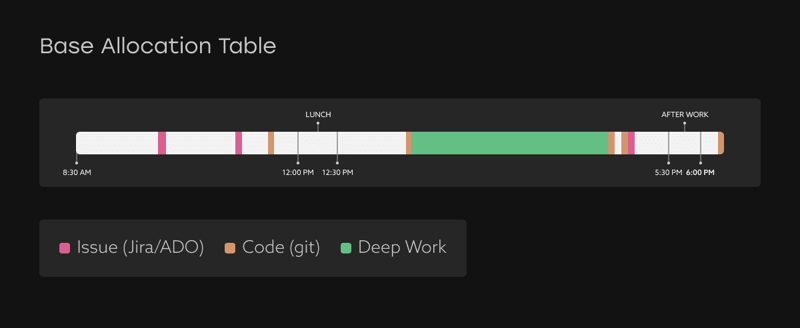
    Allocate engineering activity to available working time

    For example, imagine the green bar of work time above is 35% of the distribution. We’ve calculated that this person had 5.75 hours of available work time this day, so this stretch of time should get 35% of that 5.75 hours, or 2 hours, which is then allocated to the activity at the end of that block.

No process change or additional work is required of your teams in order to capture Time Allocation. However, Uplevel can also custom build Time Allocation based on existing Jira data to map to how your teams organize their work. Examples of custom aggregations include using custom Jira fields, parent link mappings, or even a custom rule (e.g. Project 47 + Bug Issue Types = KTLO).

For example, Uplevel maps all of our engineering work using a hierarchy in Jira. "Initiative" represents larger bodies of work and is captured via a required field on Jira Epics. We plan our initiatives on a quarterly basis and are then able to track alignment to the plans ongoing throughout a quarter with Time Allocation. 

Jira Hierarchies (1) (1)


Idea
Uplevel has many best practices to help you operationalize a new custom Jira field. Many Uplevel customers have implemented this as a new process, which Uplevel can help expedite by surfacing the work not linked or tagged according to the standard being used.

What If There Is No Activity Data?

If Uplevel doesn’t see any signals from Jira, Git, or Incident Management activity on a given day, Uplevel will sequentially look at the previous 6 days to see what Jira issues, PRs, and Incidents may still be open or being worked on. Activity is distributed across work items using story points.

If Uplevel sees no open Jira issue assigned to an individual on a given day (that is actively being worked on with activity in the last 7 days) or linked GitHub activity in the last 14 days, then Uplevel categorizes that Available Dev Time as Other efforts (aka. No Issue or PR activity), as Uplevel estimates that the developer is working in tools not captured by Uplevel on that day (e.g. documentation, Miro, etc.)

Idea
Example: Lisa is a developer and Uplevel sees no Jira, Git, or Incident Management activity for Tuesday. However, Uplevel sees that Lisa has an open Jira ticket with an associated PR authored on Monday and the PR is still open on Tuesday. Uplevel estimates that Lisa is still working on that PR/Ticket

Time Allocation Units

Uplevel's Time Allocation report offers a high level view of how teams are spending their time spread across various initiatives and projects.

This view offers several alternate ways of reporting time spent in each area.
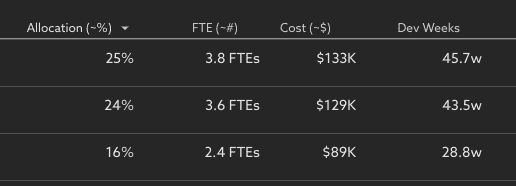
 

A comparison of the different ways to think about time spent:

  • Allocation %: What fraction of this group's time is spent on each area?
    These % values sum to 100%.
    Info
    Allocation % =
        (Dev Weeks invested in this area) / 
      (Number of contributors * Number of weeks)

  • FTE #: How many "full time equivalent" people are focused on each area? 
    A person who spends half their time on an area counts as 0.5FTE.  These FTE values sum to the number of people in the segment. 
    Info
    FTE # =
        (Dev weeks invested in this area) / 
        (Number of weeks)

  • Dev Weeks: How many person-weeks of time was spent on each area, over the selected timeframe?
    Dev weeks acts as a rough proxy for "cost".  As the number of people, or the number of overall weeks being invested goes up, so does Dev weeks.

    A person who spends half their time on an area for 1 week contributes 0.5 Dev Weeks.  If they spend half their time for 10 weeks during the selected timeframe, this would contribute 5.0 Dev Weeks.  These Dev Week values sum to the number of people in the segment times the number of weeks in the timeframe.

    Note: contributors are presumed to be salaried, and so if an individual works overtime, they are still only counted as investing 1 Dev Week of work per calendar week.  An individual who works 20h on project A, 20h on project B, and another 20h on project C within a 1 week span, would be considered to have invested 0.33 Dev Weeks in each project.
    Info
    Dev Weeks =
      Sum of each contributor:
            (Fraction of time invested in this area) * 
            (Number of weeks)

  • Cost $: This is an optional way to estimate the costs invested in each area over the selected timeframe. 
    This is calculated by multiplying the Dev Weeks invested by each contributor, times their approximate weekly cost.

    To enable the Cost $ option and configure estimated salary bands for use in this calculation, contact support@uplevelteam.com
    Info
    Cost $ =
        Sum of each contributor:
            (Dev Weeks invested in this area) * 
            (Approximate weekly salary)


Learn more

What is an Allocation Scheme? 


    • Related Articles

    • Allocation Schemes

      Definitions of Allocation Schemes, and examples of how they can be used to calculate Time Allocation for your organization. Allocation Schemes (also thought of as Allocation Rules) are used to group similar work items into larger categories to get ...
    • Epic Lead Time

      Understand the bottlenecks in your planning process by looking at your Epic Lead Time phases Overview Epic Lead Time is defined as the median epic duration, which is calculated as the difference in time from when the epic is created, through to when ...
    • How to decrease your team's unallocated time

      Tips and best practices to get a more complete picture of your organization's investments in Time Allocation Uplevel's Time Allocation metric combines signals from calendar, chat, project tracking (Jira) and version control systems (git) to estimate ...
    • Time Period Selection

      In addition to tracking changes at the weekly level, it’s now possible to view higher level bi-weekly, monthly, or quarterly trends. In the time selector, choose desired time frame, and what period of time to report on. Monthly Trend charts will ...
    • Lead Time for Changes

      How does Uplevel define Lead Time for Changes? The DORA metric Lead Time for Changes is measured as the median duration of time from first commit until the Pull Request is deployed to a production environment using CI/CD Data. This differs from Cycle ...